The PBhev Laptops ship with Windows 10 Family Edition 64Bit. This is a customized version of Windows 10, so installing a different Windows 10 version usually poses a challenge for many University students or people who own these laptops. This step-by-step guide on installing other versions of Windows 10 64 bits on a PBhev laptop will make that easy and quick.
As a recall, the PBHEV comes with 2GB of DDR3 RAM and 32GB SSD expandable via MicroSD. An Intel processor powers the laptop while Intel HD Graphics handles graphics-related tasks.
Before proceeding with this Windows installation guide, It is essential to backup your PBHEV drivers and critical files, as these will be lost after the system is reinstalled.
Requirements For Formatting a PBHEV Laptop
- A USB HDD or flash drive (Minimum of 8GB)
- Windows 10 64 bits disk image (iso)
- Rufus (This software makes the iso file bootable in one click)
How to Format and Install on PBHEV Laptops (Step-By-Step Guide)
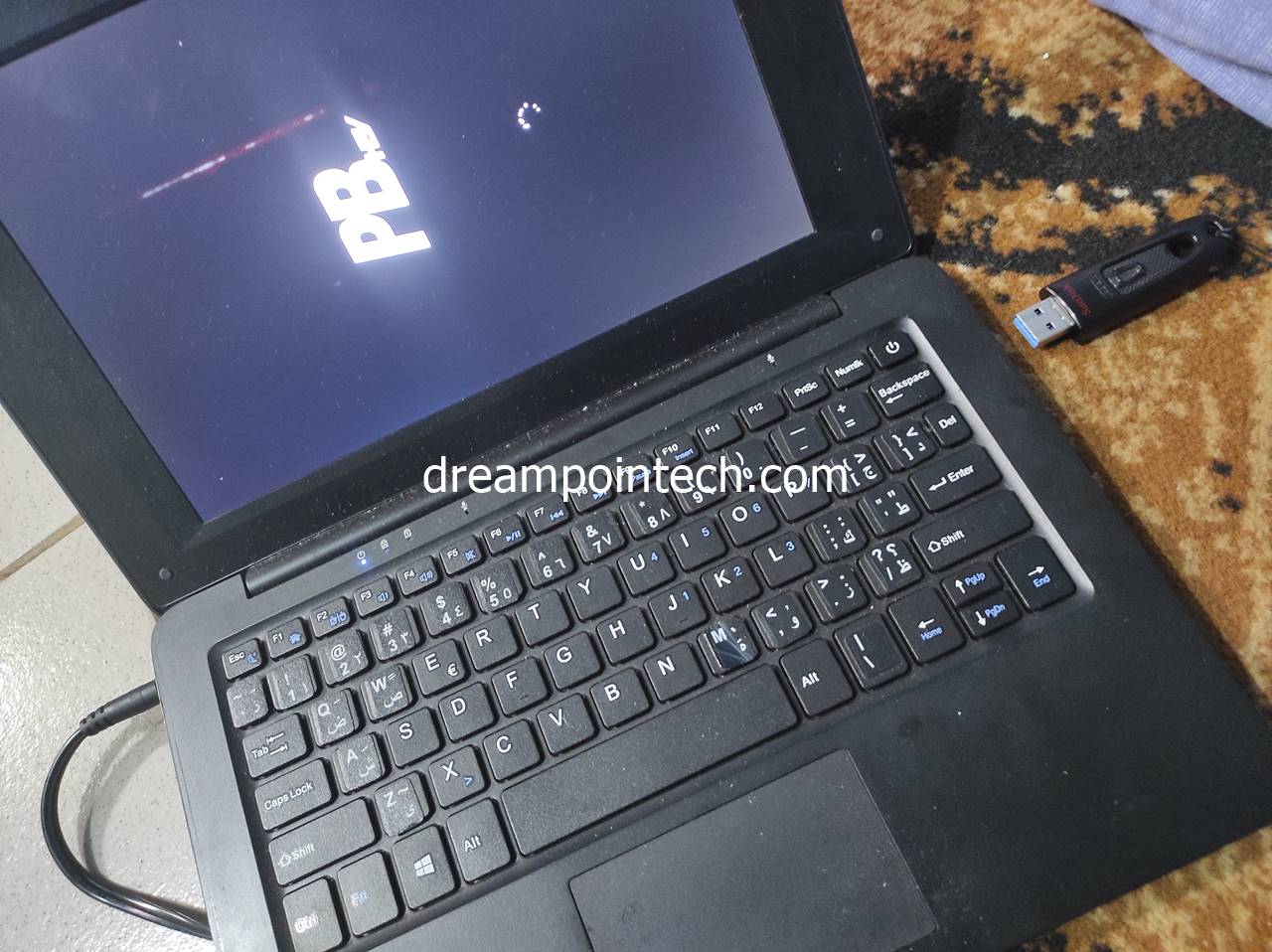
Before you begin, ensure the laptop has been turned off and the bootable flash drive, which contains the Windows 10 operating system, is attached to the computer.
- Select the device on this list that corresponds to the drive you just inserted using the up and down keys on the keyboard. Press the enter key to confirm
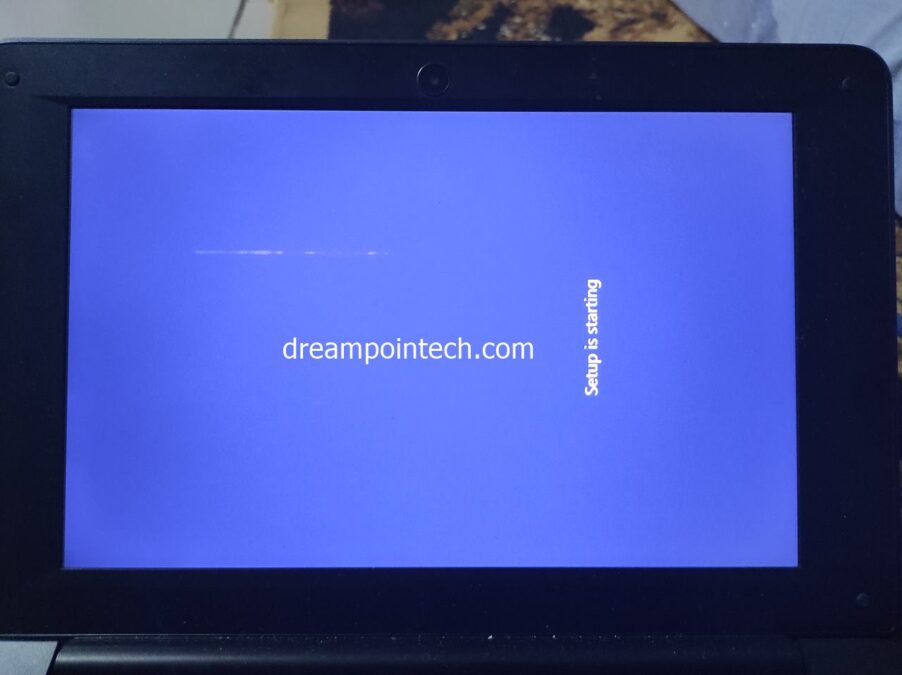
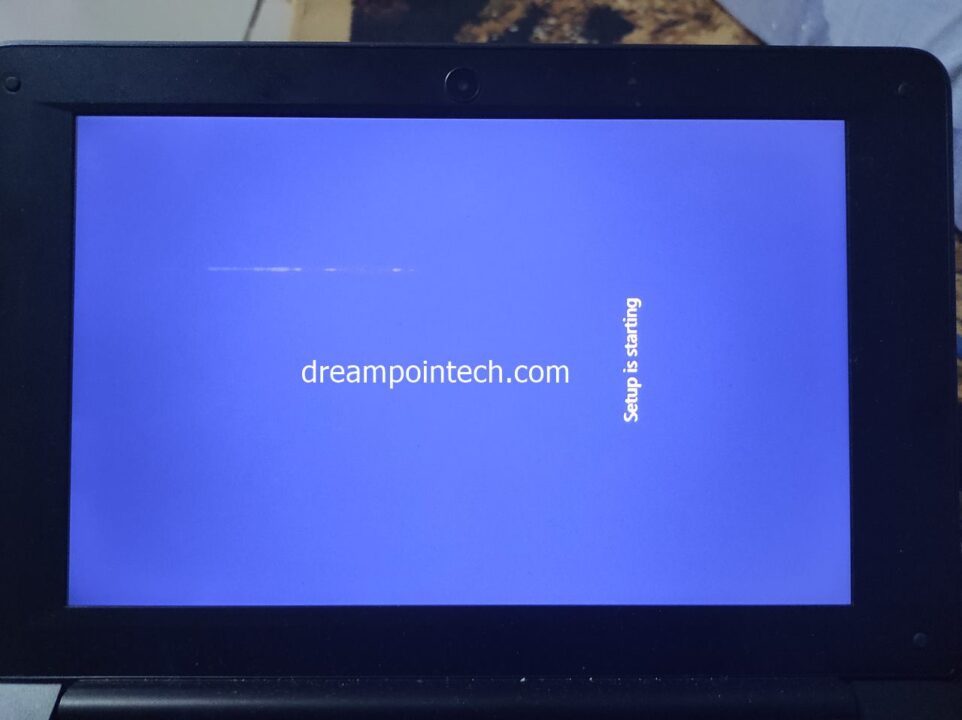
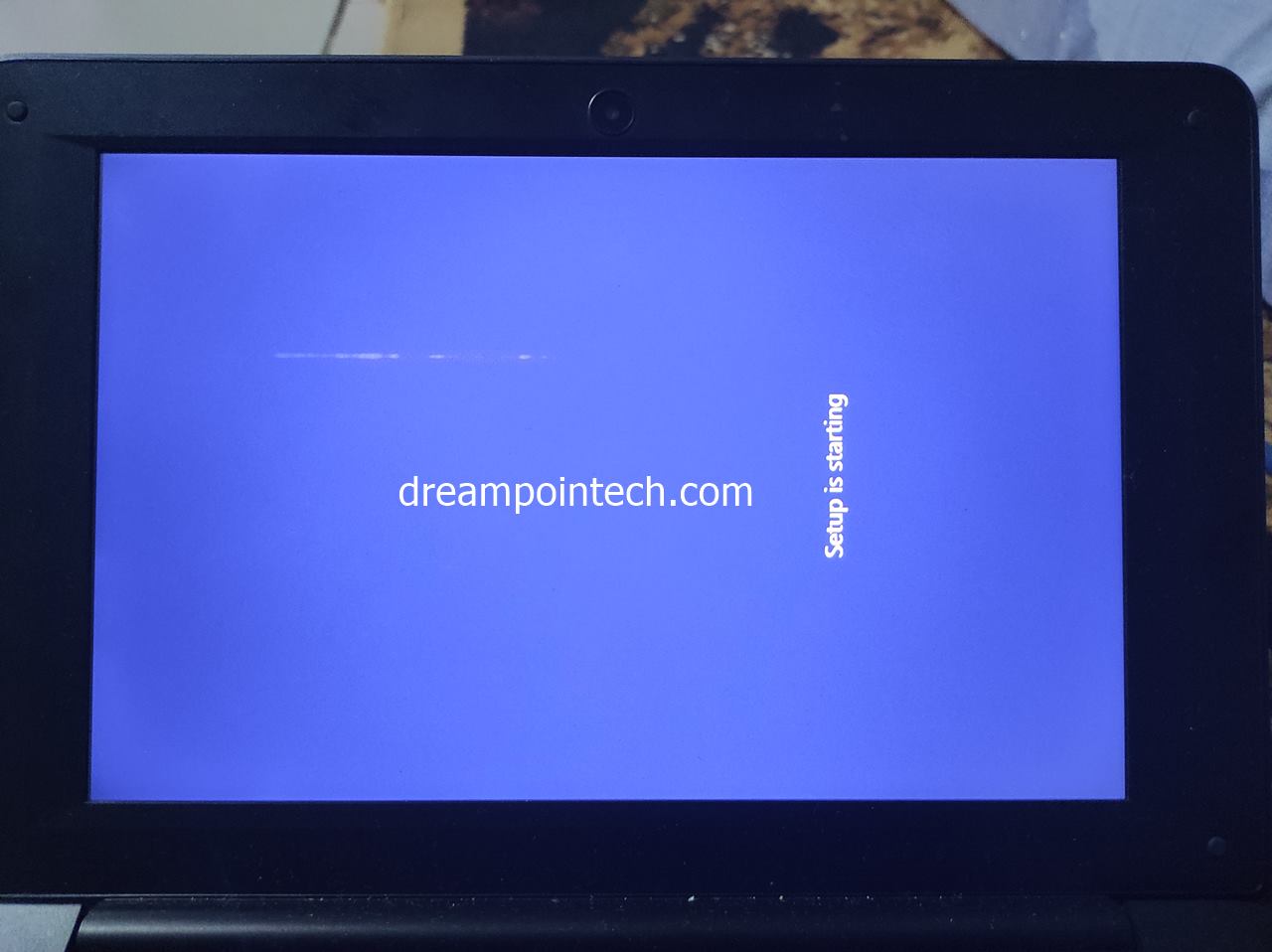
- The following screen will tell you Windows is Starting.

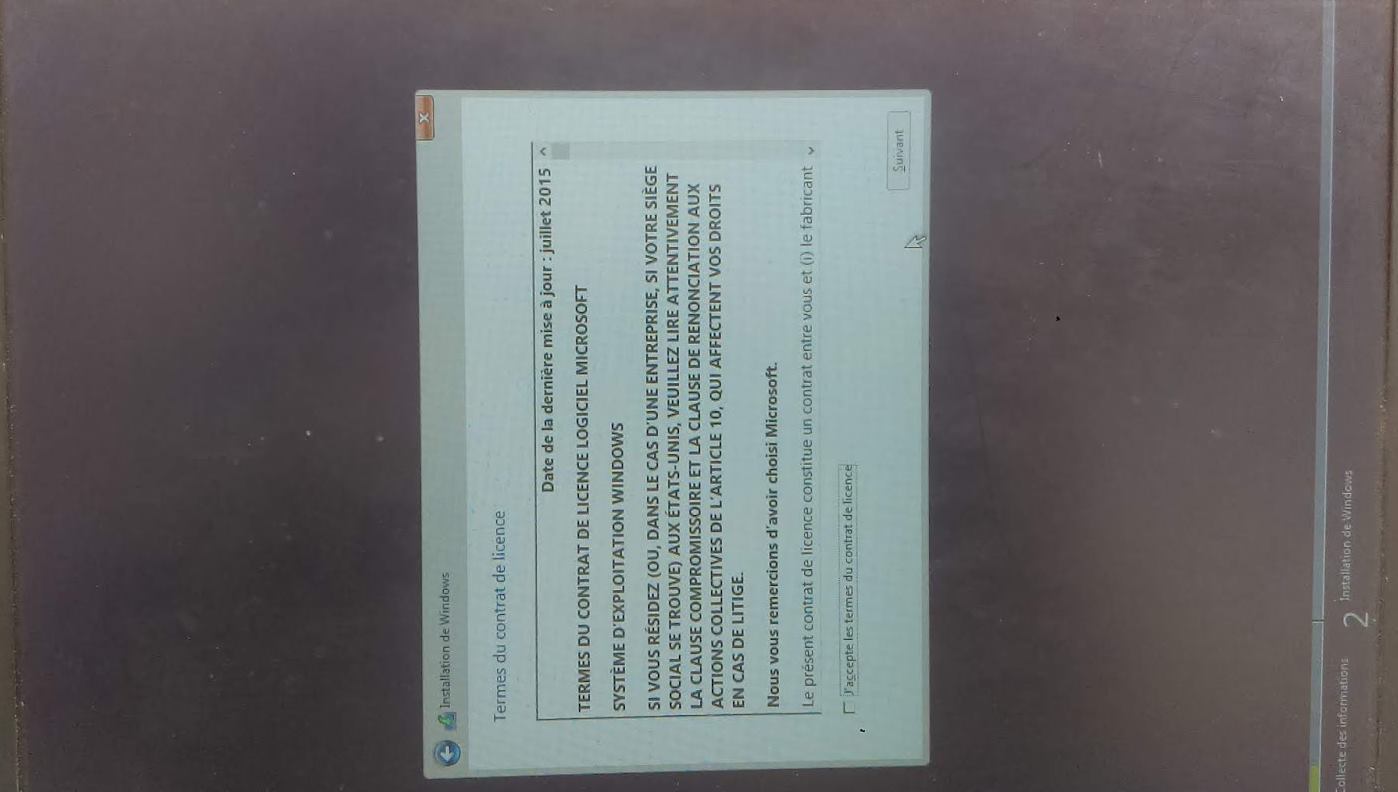
- Accept the License Agreement from Microsoft.

- Next, delete all partitions till you are left with unallocated space.

- Hit the Next key to continue
- Wait for about 10 minutes. Once the laptop restarts, remove the USB disk from your PBHEV. You no longer need it at this stage. This is important to do so; otherwise, your laptop will automatically boot from the USB disk by default in some cases.
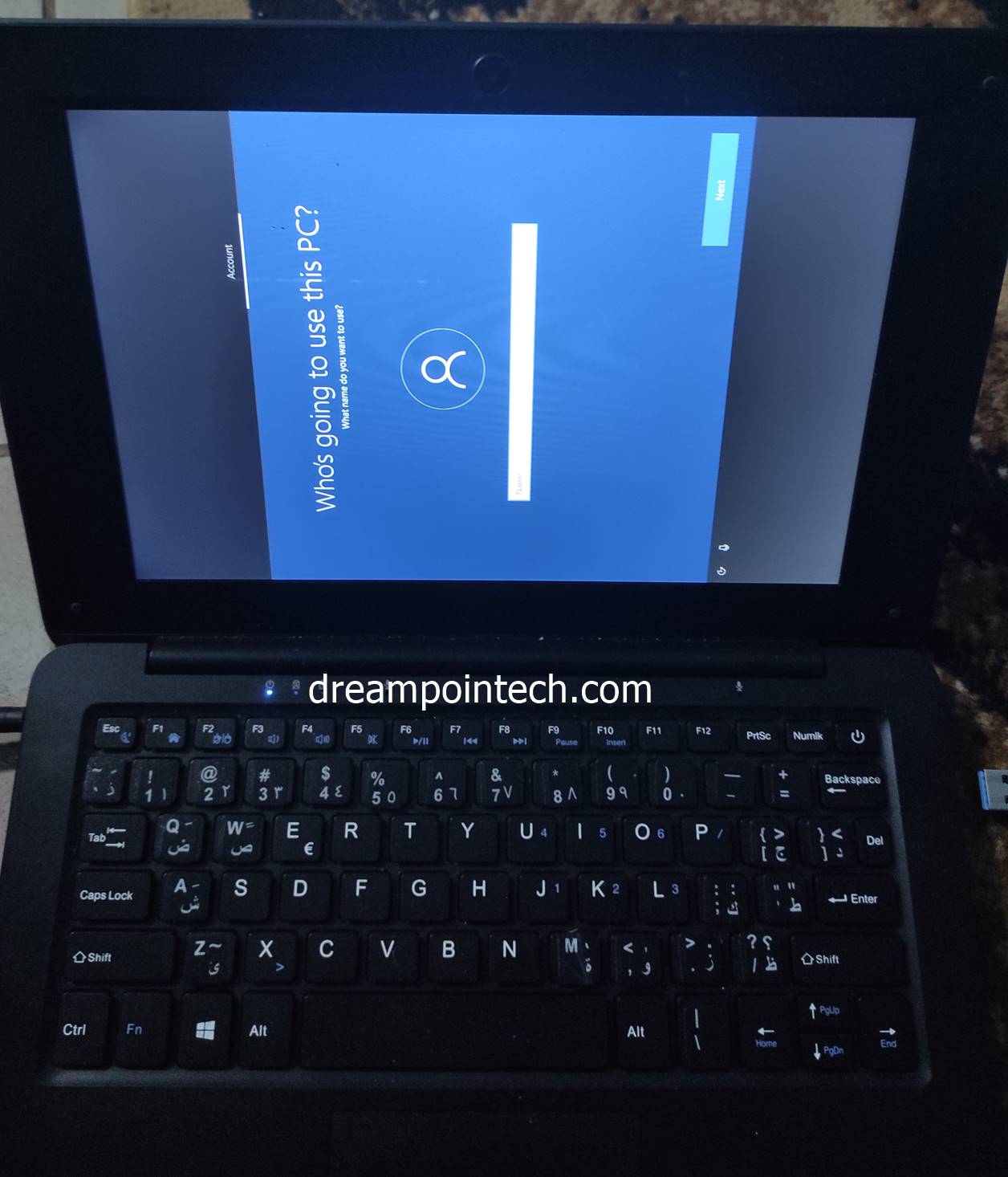
- Select your Language settings, preferences, and User Accounts.

- Once done, Your new Windows installation on your PBHEV will boot to the desktop.
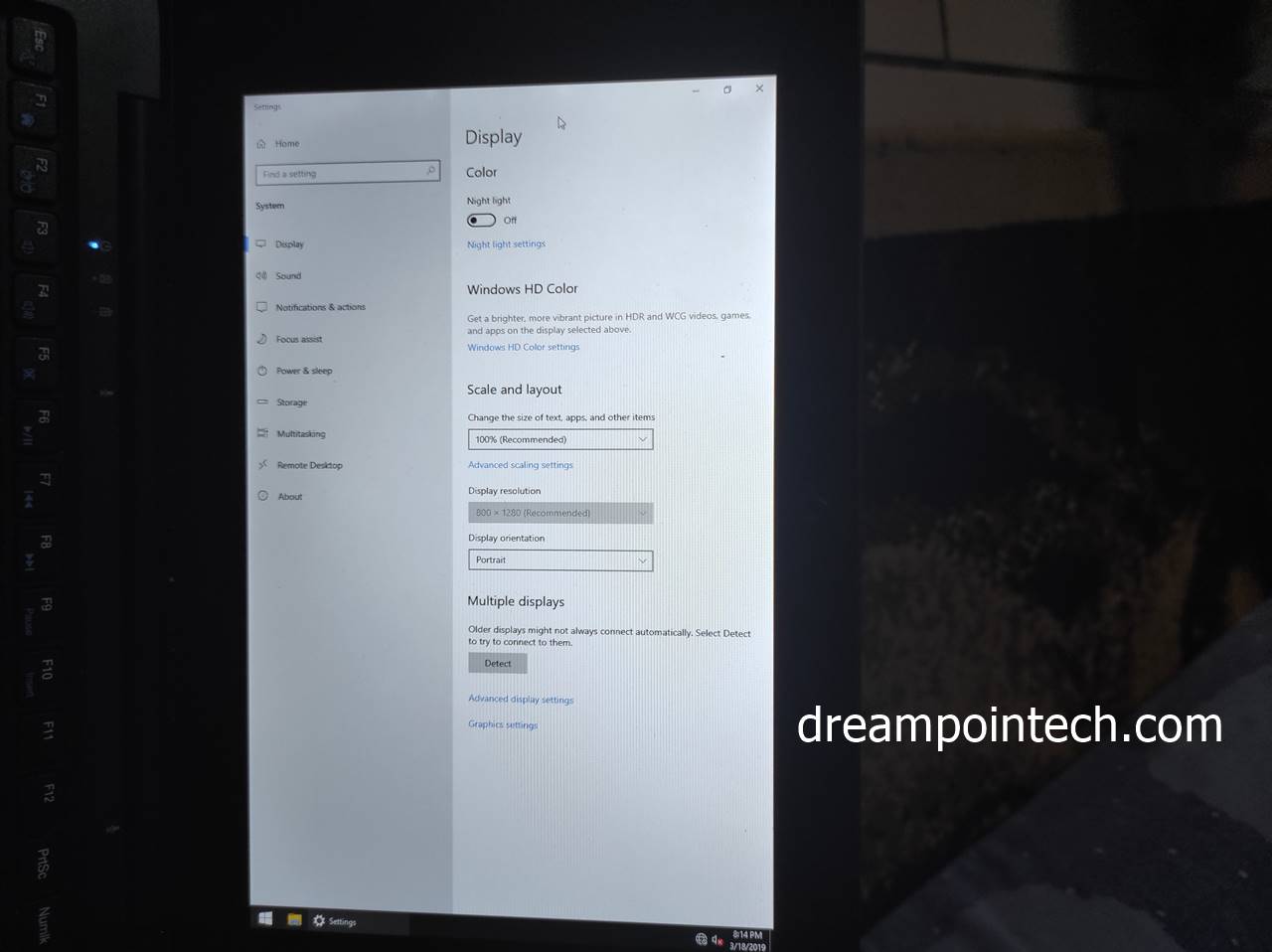
- Change the Portrait mode to landscape mode by right-clicking on the desktop and selecting display settings.


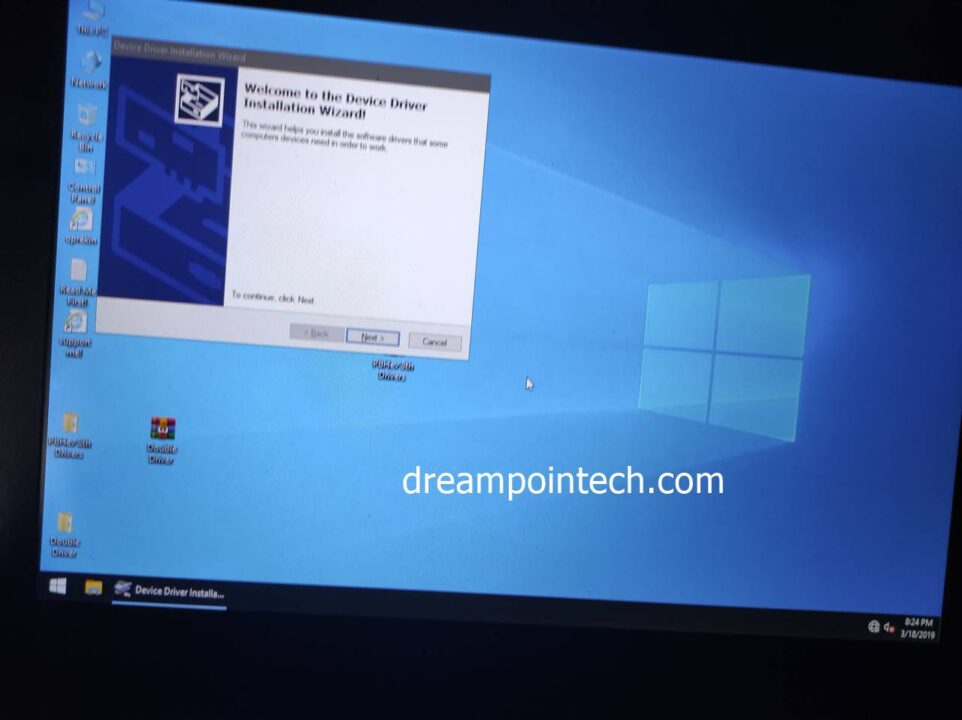
After installation, you will have to restore all drivers to make the laptop fully functional. You can download them from this article.
Enjoyed this article? Drop a comment below. Thanks